Open an account in just 10 minutes! Start your journey now!


Frequently Asked Questions
Find answers to the most frequently asked questions about banking products and services, accounts, cards, loans, payments, and the bank’s digital services.
Opening an account can be done 100% online if you have a Kosovo identification document. You can apply to open an account through the following link: Open an account - ProCredit Bank
The documents required to open an account are:
• Kosovo ID card or passport
• Proof of residence in Kosovo (electricity bill, water bill, property tax, birth extract, etc.), not older than 6 months.
If you do not have Kosovo identification documents, you can submit your account opening request in person at one of ProCredit Bank’s branches.
If you want to continue with opening an account in person, you need to bring the following documents with you:
• Valid passport (foreign)
• Proof of residence in Kosovo (electricity bill, water bill, property tax, etc.), not older than 6 months, as evidence of your residential address in Kosovo.
Branch hours are every weekday from 09:00 to 16:30.
For more information about branch locations, you can refer to the following link: Network - ProCredit Bank
The Bank’s price list is published on our official website. For easier access, click the following link: Price List - ProCredit Bank
Updating personal information can be done online through the e-Banking service or in person at your nearest branch.
To update your information online, log in to the desktop version of e-Banking on the bank’s website using the following link: e-Banking ProCredit Bank log in
For branch service, the branch hours are every working day from 09:00 to 16:30.
For more information about branch locations, you can refer to the following link: Network - ProCredit Bank
Account activation can be done directly online through the e-Banking service or by visiting the nearest ProCredit Bank branch.
To activate your account online, log in to the desktop version of the bank’s website using the following link: e-Banking ProCredit Bank log in
Activation can also be done through the mobile app:
For branch service, the branch hours are every working day from 09:00 to 16:30.
For more information about branch locations, you can refer to the following link: Network - ProCredit Bank
The bank document for account transactions can be generated directly online through the e-Banking service or can be received physically at one of ProCredit Bank’s branches.
In the desktop version, you can do this through the following link: e-Banking ProCredit Bank log in
You can generate the document through the menu: Account > Account activity.
In the mobile app, go to the menu “All services” > “Reports & Documents”, select “New Report” and then “Account Statement”.
The document can be generated on the date the payment is reflected and will appear with an electronic stamp in PDF format.
If you do not have access to e-Banking, you can visit the nearest ProCredit Bank branch to obtain the document and to get set up with the e-Banking service.
The document can be generated directly online through the e-Banking service or can be received physically at one of ProCredit Bank’s branches.
In the desktop version, you can do this via the following link: e-Banking ProCredit Bank log in
You can generate the document “Vertetim per kliente te PCBK” (Proof for PCBK clients) through the “User profile” menu.
In the mobile app, go to the menu “All services” > “Reports & Documents”, select “New Report” and then “Account confirmation”.
The generated documents have the bank’s electronic seal.
If you don’t have access to e-Banking, you can visit the nearest ProCredit Bank branch to get the document and to register for the e-Banking service.
If you were unable to find the information you were looking for, please contact our Contact Center at 038/049 555 555 or via email: kos.kujdesiperkliente@procredit-group.com
You can apply for a loan online through the link: Apply online - ProCredit Bank.
Information about the loan price list can be found in the bank's official price list in the ‘Loan Services' category.
Link to the price list: Price List - ProCredit Bank
For more information about loans, write to us here
Opening a savings account can be done directly online through the e-Banking service or by visiting the nearest ProCredit Bank branch.
To do this online, log in to the desktop version of the bank’s website using the following link: e-Banking ProCredit Bank log in
The service can also be done through the mobile app:
Opening a savings account can be done directly online through the e-Banking service or by visiting the nearest ProCredit bank branch.
To use the online service, you need to log in to the desktop version on the bank's website via the link: e-Banking ProCredit Bank log in
Activation can also be done through the mobile app:
For more information about deposit offers, write to us here.
For more information about savings, write to us here
You can get equipped with the e-Banking service by visiting one of ProCredit Bank's branches.
The branches are open every working day from 9:00 AM to 4:30 PM.
For more information about branch locations, you can refer to the link: Network - ProCredit Bank
First-time login to e-Banking is done through the ProCredit Kosova mobile app, which you can download from the AppStore/Playstore, and then you use the information received from the bank when opening your account:
• Username – you received this information together with the physical documents when opening the account at the branch or via email with the bank's confirmation for account activation if the account was opened 100% online.
• Password –you have already received this information via SMS to your phone number.
After entering your username and password, you will receive an SMS with a security code on your phone, and after entering the code, the app will ask you to change the one-time password you received from the bank and then set your app PIN.
You can choose your PIN code according to your preference.
Once you have successfully set your app PIN, you will be offered the option to enable or skip biometric authentication as the next step. Whenever you want to log in to the e-banking service or make transactions via e-banking, you will need to approve the login or transaction with your PIN or biometric authentication in the mobile app.
The blocking of the e-Banking username happens automatically when you have attempts with incorrect data.
With a successful password reset, the profile is also unblocked, but if you already have the correct credentials for logging in and you only need the profile to be unblocked, you can contact us directly at 038/049-555-555 for unblocking.
Instructions for reset:
Once you go to the app's home window and click on the "Forgot your password?" option:
Please make sure that you are entering your username according to your e-Banking contract, since SMS will not be accepted afterwards, and that the phone number registered with the bank is active for receiving SMS.
If you don’t have the phone number registered with the bank or the username, the system won’t let you continue, and you’ll need to visit a branch to reset your password and update/register your information.
Branch hours are on weekdays from 09:00 to 16:30.
For more information about branch locations, you can check the link: Network - ProCredit Bank
If you have forgotten your login password for your e-Banking service, you can reset it directly in the mobile app.
Go to the app's home screen and click on the 'Forgot your password?' option.
Please make sure that you are entering your username according to your e-Banking contract, since you won't be receiving SMS messages going forward, and that the phone number registered with the bank is active for receiving SMS.
If you don't have the phone number registered with the bank or the username, the system won't let you proceed, and you will need to visit a branch to reset your password and modify/register your information.
Branch hours are every working day from 09:00 to 16:30.
For more information about branch locations, you can refer to this link: Network - ProCredit Bank
If you have forgotten your PIN to access the m-Banking app for logging into your e-Banking service, you can reset it directly in the app.
Once you open the app, click on the "Forgot PIN?” option.
Once you have successfully set your app PIN, you will be offered the option to activate biometric authentication as the next step, if you wish.
In case you have deleted the app or changed your phone and no longer have access to the app, after downloading the “ProCredit Kosova” mobile app from the App Store/Play Store, follow these steps:
Whenever you want to log in to the e-Banking service or make transactions through e-Banking, you will need to approve the login or transaction with your PIN or biometric authentication in the mobile app.
If you haven't been able to get the information you requested, please contact us at the Contact Center at 038/049 555 555 or via email: kos.kujdesiperkliente@procredit-group.com.
You can apply for a card online through e-Banking (desktop version) or through the bank’s new ProCredit Kosova app.
Below you can find the instructions for applying through the desktop version:
In the mobile app:
To block or unblock your card, please follow the steps below through the ProCredit Bank Kosovo app:
This service can also be done at the Contact Center by calling: 038/049-555-555.
You can activate your digital card in the ProCredit Kosova mobile app under Accounts & Cards > Cards, by tapping on your card’s picture.
After setting your PIN code, you can use your card to make online or in-store payments once added to your Digital Wallet.
To activate your physical card after receiving it by mail, there are two options:
You need to send an SMS from your phone number registered with the bank. The SMS should be sent to 50334.
In the SMS, include the last 4 digits of your card (no extra text).
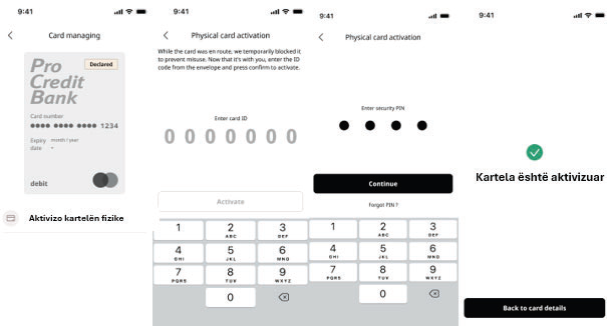
Once you receive your new card by mail, it will appear grayed out in the app. To activate it, click the “Activate physical card” button and enter the unique code that you received in the envelope along with the card.
The physical card activation flow in the app is as follows:
To add your card to the Digital Wallet, please follow the steps below through the ProCredit Bank Kosovo app:
Modifying some of the card limits can be done directly through the “ProCredit Kosova” mobile app.
After logging into the app, you need to go to “Cards & Accounts”, click on “Cards” and select your card's photo. Then you will find the menu “Manage card limits” where you can choose the type of limit you need to modify.
If you haven't been able to get the information you requested, please contact us at the Contact Center at 038/049 555 555 or via email: kos.kujdesiperkliente@procredit-group.com.
Information for receiving funds from abroad for beneficiaries at ProCredit Bank in Kosovo can be found as follows:
You can download your personalized document from your e-Banking service, desktop version, in the menu: User Profile > Receiving money from abroad.
Making a transfer to national accounts can be done directly online through the e-Banking platform.
A national transfer can be made through:
If you don’t have the e-Banking service, you can get set up with the service at one of the bank’s branches or initiate the transfer from the branch.
Making a transfer to international accounts can be done directly online through the e-Banking platform.
An international transfer can be made through:
If you don’t have the e-Banking service, you can get set up with the service at one of the bank’s branches or initiate the transfer from the branch.
If you haven't been able to get the information you requested, please contact us at the Contact Center at 038/049 555 555 or via email: kos.kujdesiperkliente@procredit-group.com.